Nebsty Planner
From your mission to today’s to-do — in one notebook. A Franklin-style top-down planner for macOS and Windows. Plan from mission → long-term goals → year → month → week → day, turning pages like an open notebook. Everything is saved as Markdown files on your computer.
🧪 Now in beta on TestFlight. Join the beta with Apple’s TestFlight app. When a build expires, everything you wrote stays where it is.
English · 한국어
⬇︎ Join the beta on TestFlight (macOS) · ⬇︎ Download for Windows · Install · Privacy policy · Terms · Send feedback
What it does
 |
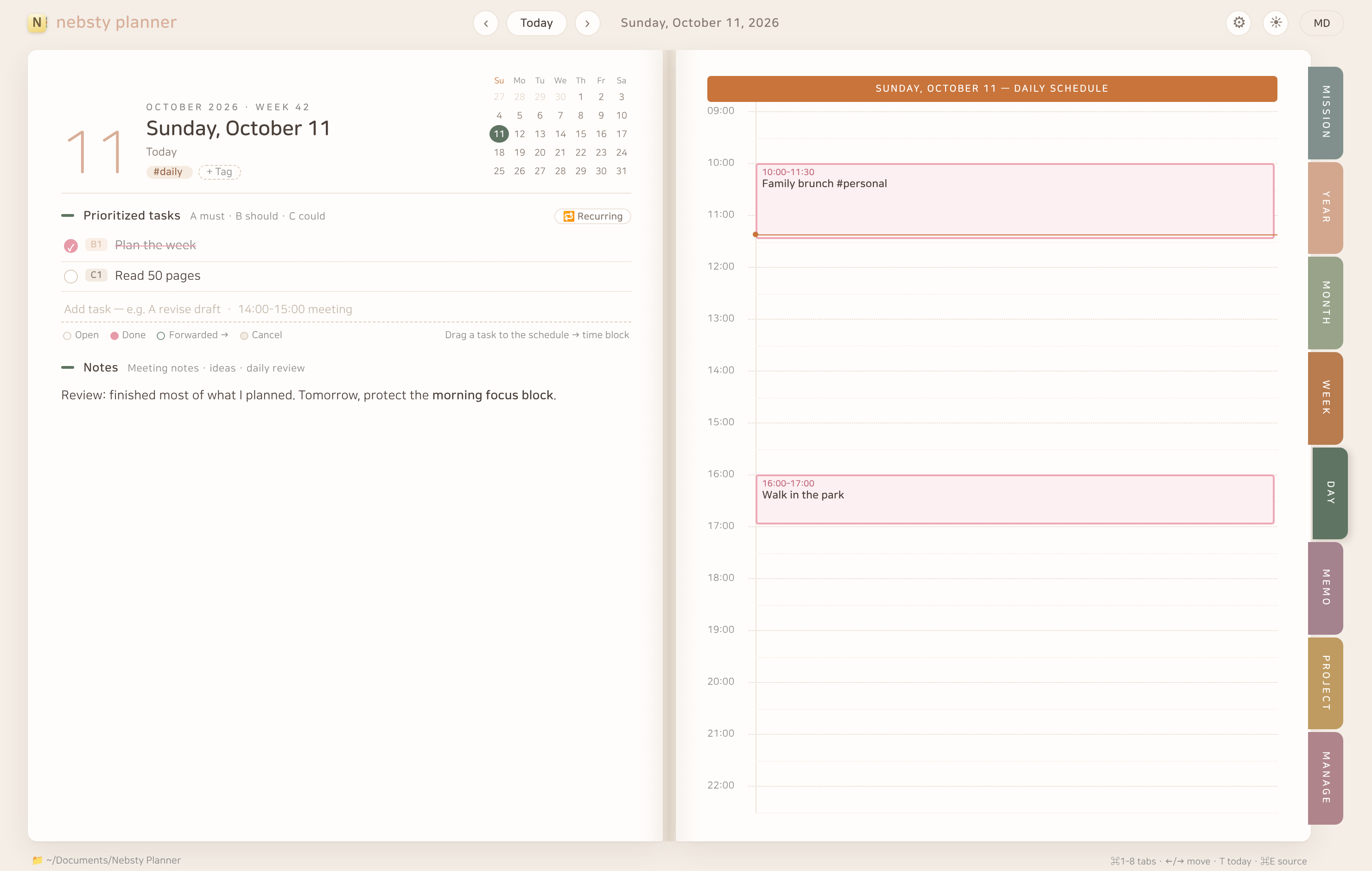 |
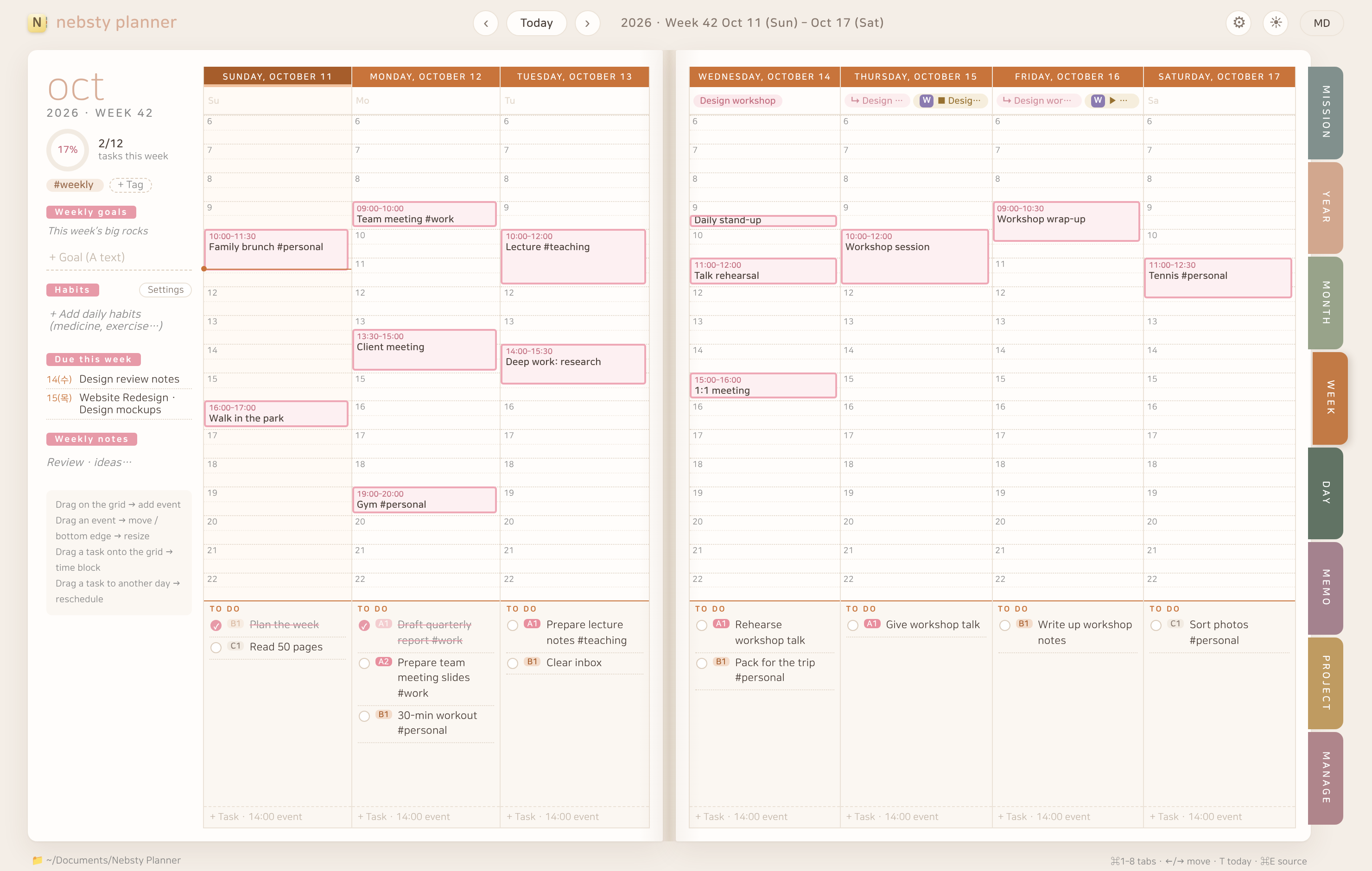
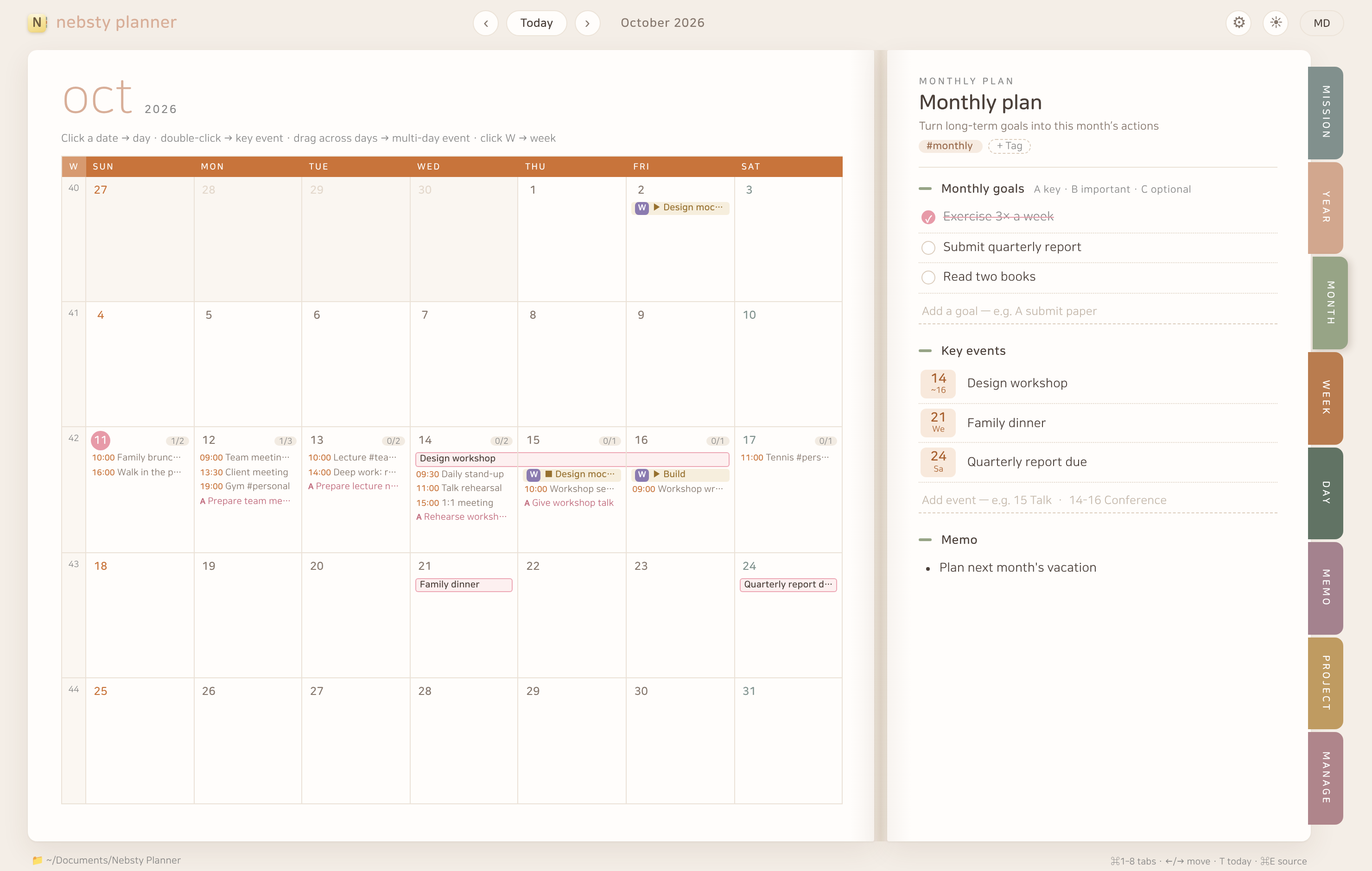
| Month — calendar, monthly goals and key events. Drag across days to add a multi-day event. | Day — A·B·C prioritized tasks, a 5 am–midnight schedule, and daily notes. |
 |
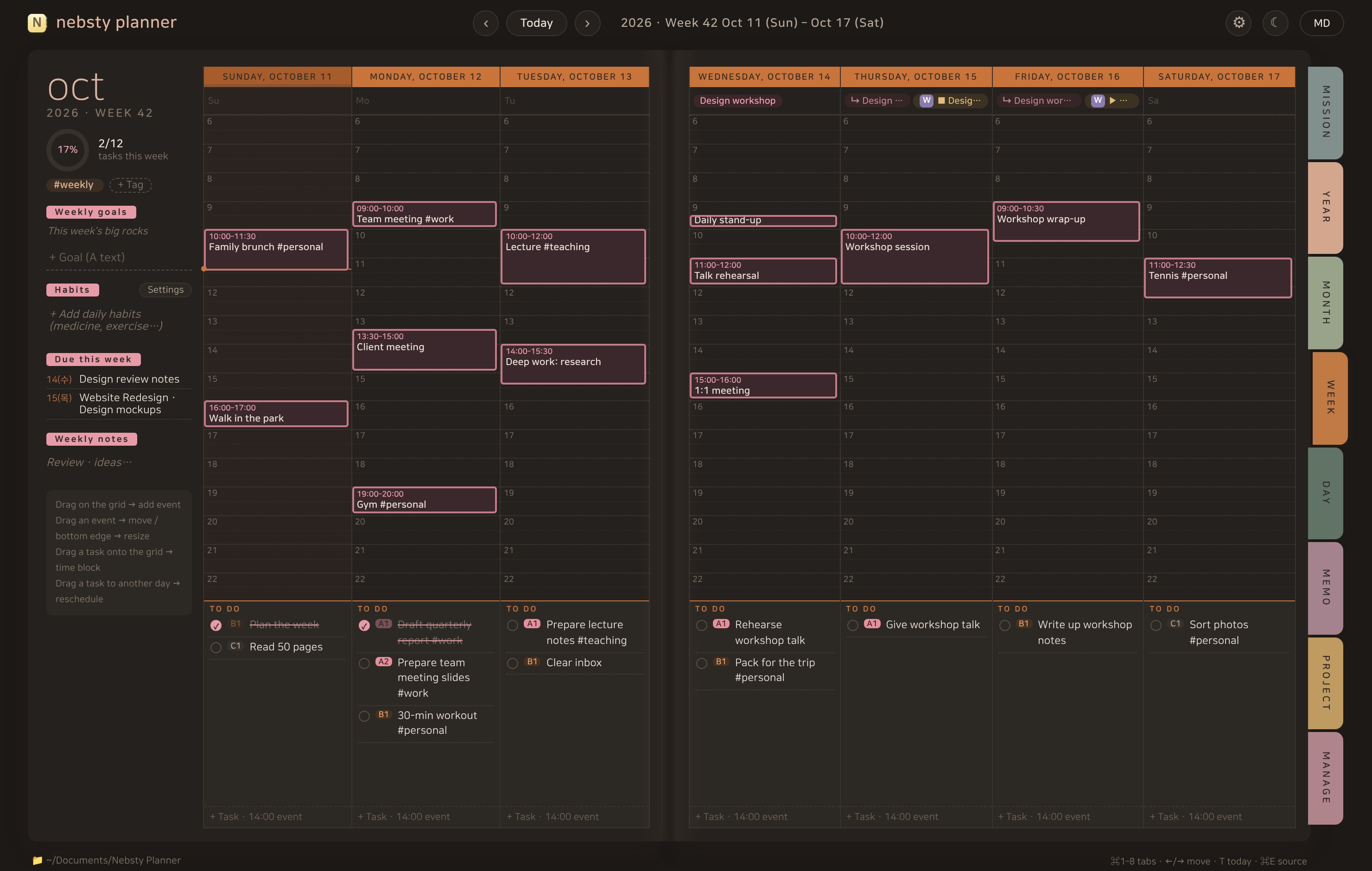 |
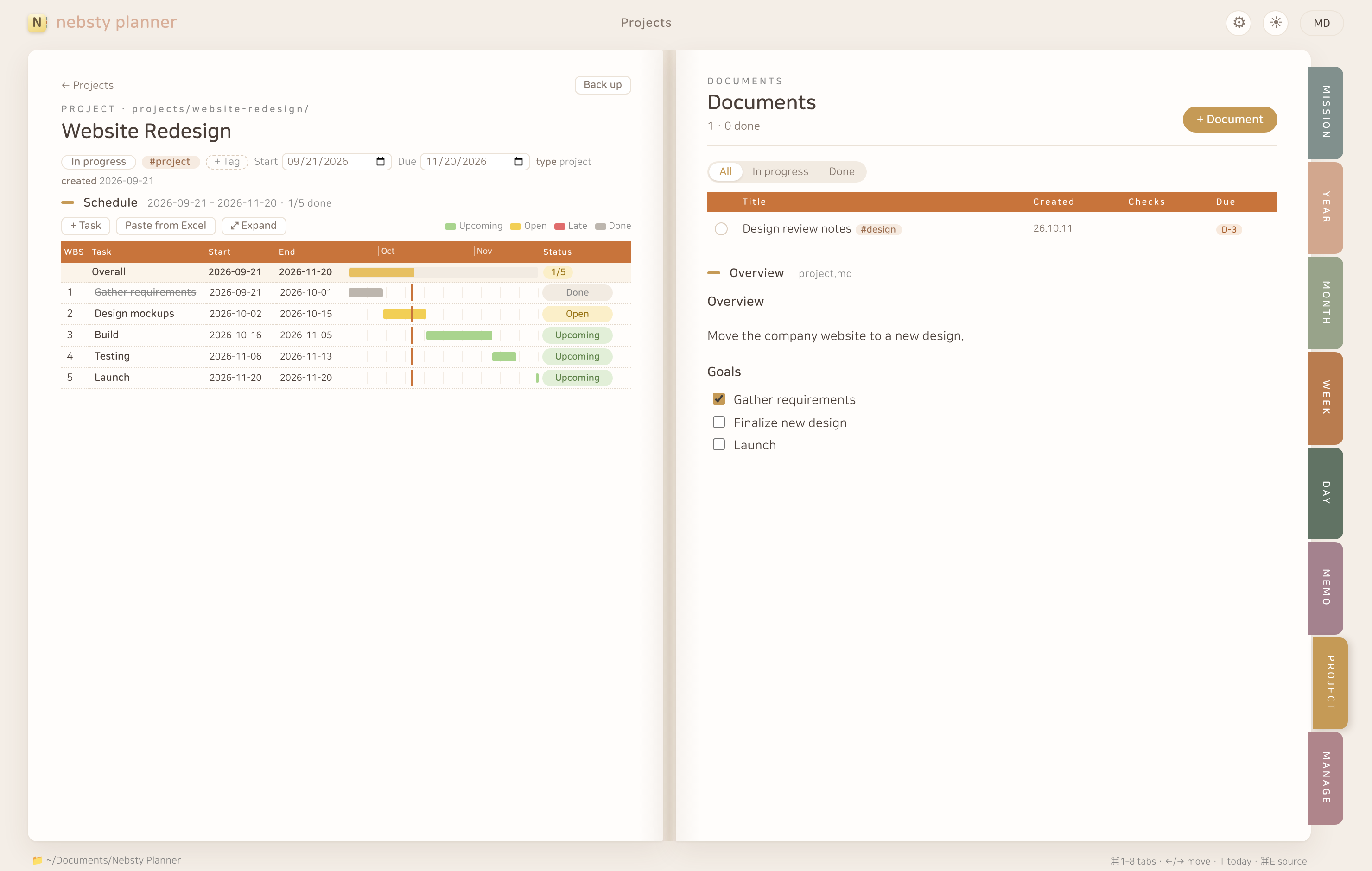
| Projects — a set of documents plus a WBS schedule with a Gantt chart. Paste straight from Excel. | Dark mode · English / 한국어 |
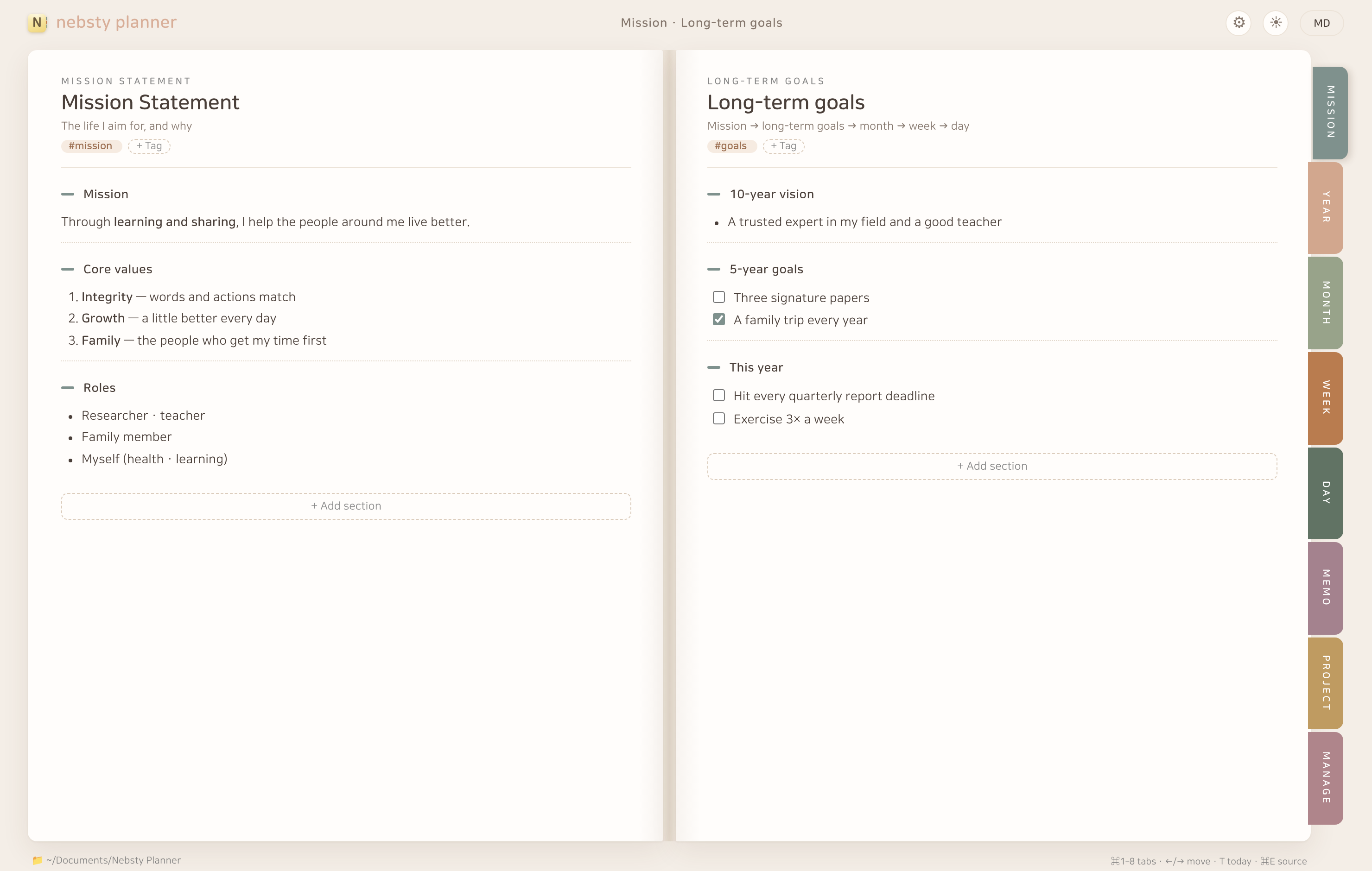
- Top-down planning — your mission statement and long-term goals flow into yearly, monthly and weekly goals, and then into today’s tasks.
- Open-notebook layout — two facing pages; flip with the tabs on the right (⌘1–8).
- Drag on the schedule — drag an empty slot to add an event, drag a block to move it, drag a task onto the grid to time-block it.
- Habits & recurring events — daily, weekdays, chosen days or monthly. Check off habits in the week view.
- Memos & project documents — write in Markdown; drop in images and resize them.
- Sync with Apple Reminders & Calendar — edit today’s to-dos and your events on either side. Reminder lists and calendars map to tags such as
#personalor#work. - Dated to-dos in memos & projects — write
- [ ] task #tag 📅 2026-10-12in any memo or project document and it shows up on that day, week and month (and syncs to Reminders / Google Tasks with that due date). Click it to jump to the memo; check it off and the memo gets✅. - Sync with Google Tasks & Google Calendar — connect your Google account in Settings; works alongside Apple sync, with task lists and calendars mapped to tags the same way.
- Subscribed calendars (ICS) — show holidays, school or team calendars in the month, week and day views.
- Your files stay yours — every page is a Markdown file in your data folder. Put it in iCloud Drive or Nextcloud to use it on several Macs, or open it in other apps such as Obsidian. Backups and a year-end cleanup are built in.
- Choose your font — the system font by default, or type the name of any font installed on your computer.
Install
Requires: macOS 13 (Ventura) or later · Apple Silicon or Intel
- Install TestFlight from the Mac App Store (free).
- Open the beta link on your Mac: https://testflight.apple.com/join/UVgxex6p
- Click Accept and then Install in TestFlight. Nebsty Planner appears in Applications.
- On first launch, choose the folder for your planner data (
~/Documents/Nebsty Planneris suggested). - To sync with Reminders and Calendar, turn it on in ⚙ Settings › External sync and allow access when asked. If you don’t use sync, the app never asks. For Google, click Connect Google account… there and sign in in your browser.
Where your data lives: ~/Documents/Nebsty Planner by default. You can move it to iCloud Drive, Nextcloud or any folder in ⚙ Settings.
Windows
Requires: Windows 10 or 11 (64-bit) · Microsoft Edge WebView2 Runtime (built into Windows 11)
- Download Nebsty-Planner-0.8.0-Setup.exe (all versions: Releases).
- Run it. No administrator rights are needed. The installer isn’t code-signed yet, so if Windows shows “Windows protected your PC”, click More info › Run anyway.
- Your data goes to
Documents\Nebsty Plannerby default. Put it in Nextcloud or OneDrive to share the same planner with a Mac. - Google Tasks & Google Calendar sync work on Windows; Apple Reminders & Calendar are Mac-only. Shortcuts use Ctrl instead of ⌘.
- The Windows app checks for new versions once a day.
About the beta
- The beta is distributed through TestFlight. TestFlight tells you when a new build is out and installs it for you (you can turn on automatic updates there).
- Each TestFlight build works for up to 90 days. Before then a newer build usually replaces it.
- Your data is never affected. Install the new build and carry on. Even in between, your Markdown files open in any app.
- Please report bugs, rough edges and wishes in Issues. A screenshot and your macOS version help a lot.
FAQ
Does it need the internet? No. The planner runs entirely on your computer. It goes online only to read subscribed calendars and — if you connect it — to sync with Google. On the Mac, updates come through TestFlight / the App Store; the Windows app checks this site once a day.
Where does my data go? Nowhere. No accounts, no servers, no analytics. See the privacy policy.
Is there a Windows version? Yes — download it here. It’s free with every feature open, and it reads the same data folder as the Mac app.
What happens after the beta? Nebsty Planner will be released for free on the Mac App Store. Your data folder carries over as it is.
License
© 2026 Heesu Yang. All rights reserved. This repository contains only release files and documentation.